Google Workspace
This guide configures single sign-on (SSO) between Google Workspace and Mawidabp using SAML 2.0. Users authenticate with their corporate Google account and their Mawidabp profiles are derived from the organizational units or groups defined in Workspace.
Prerequisites
- Administrator access to the Google Workspace admin console.
- Administrator in Mawidabp.
- Service-provider (SP) URLs and SAML metadata that the Mawidabp team provides — if you don't have them, write to soporte@mawidabp.com.
Part 1 — Configuration in Google Workspace
1. Add a new SAML app
- Sign in to admin.google.com.
- Apps → Web and mobile apps → Add app → Add custom SAML app.
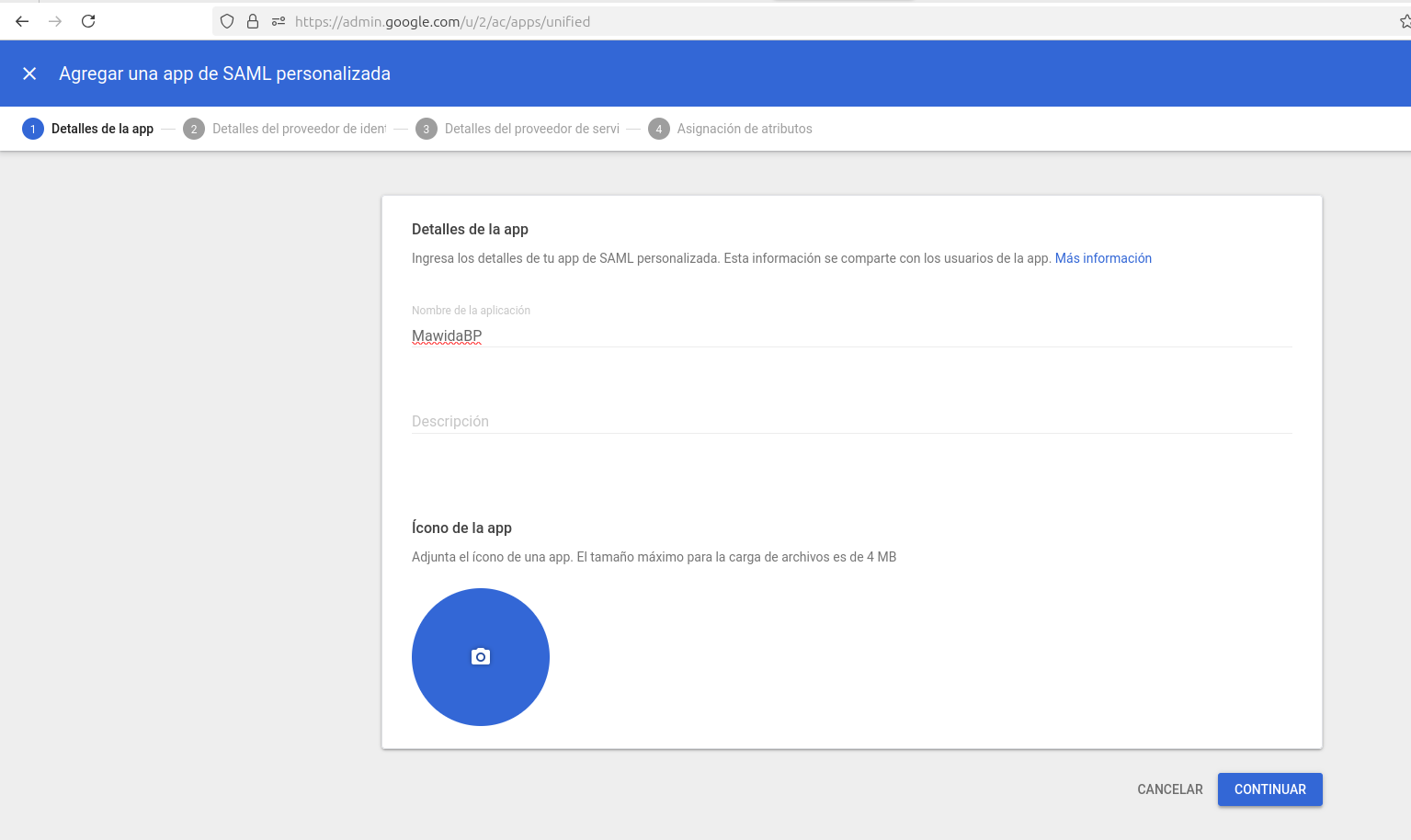
2. App basic details
- Name:
Mawida BP(or whatever you prefer). - Upload an icon (optional).
- Continue.
3. Identity Provider (IdP) details
Google shows you your IdP info. Copy:
- Single sign-on (SSO) URL.
- Entity ID.
- Signing certificate.
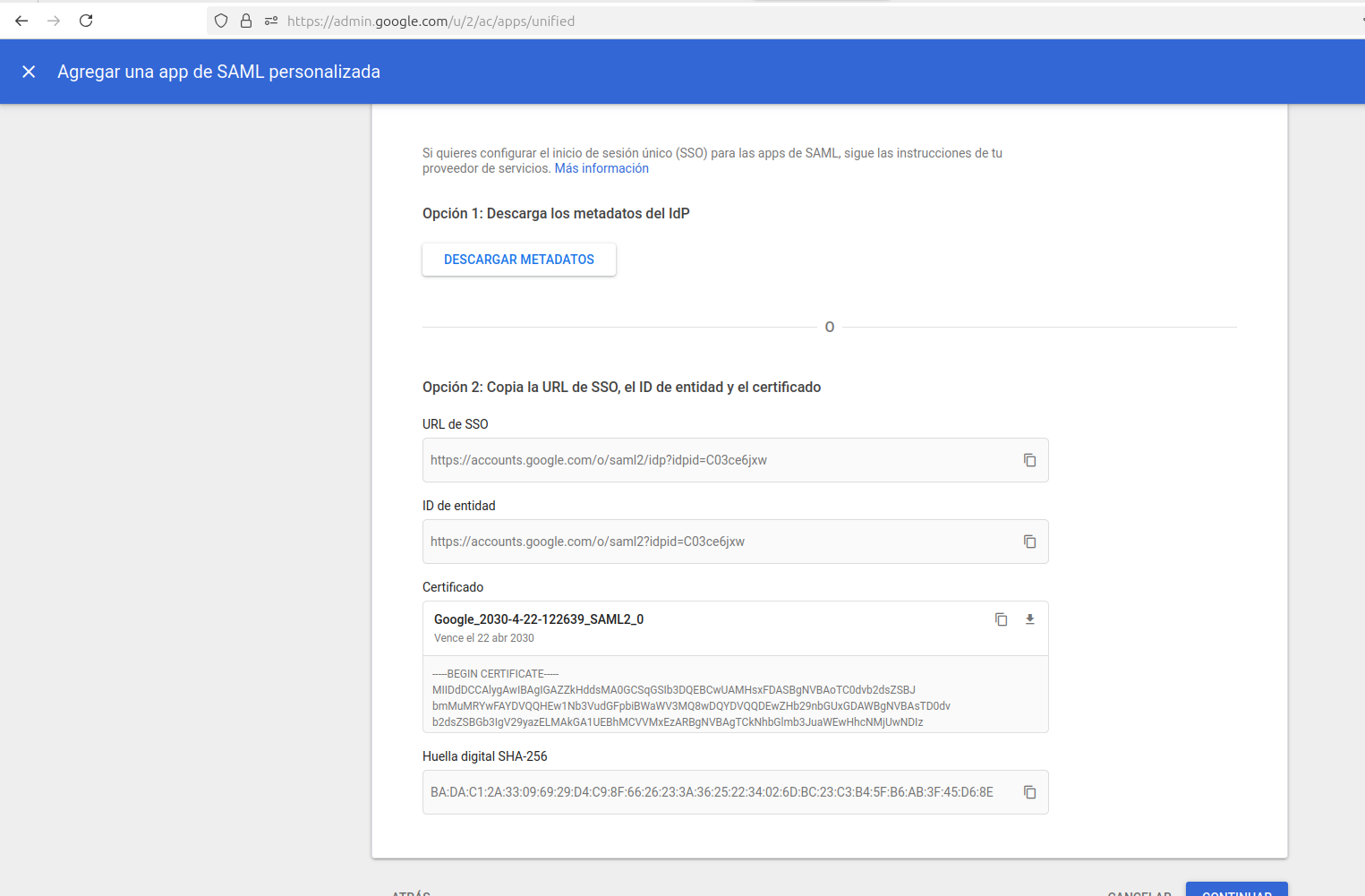
These data go to the Mawidabp team at soporte@mawidabp.com so they can complete the configuration on the service side.
Click Continue.
4. Service Provider (SP) details
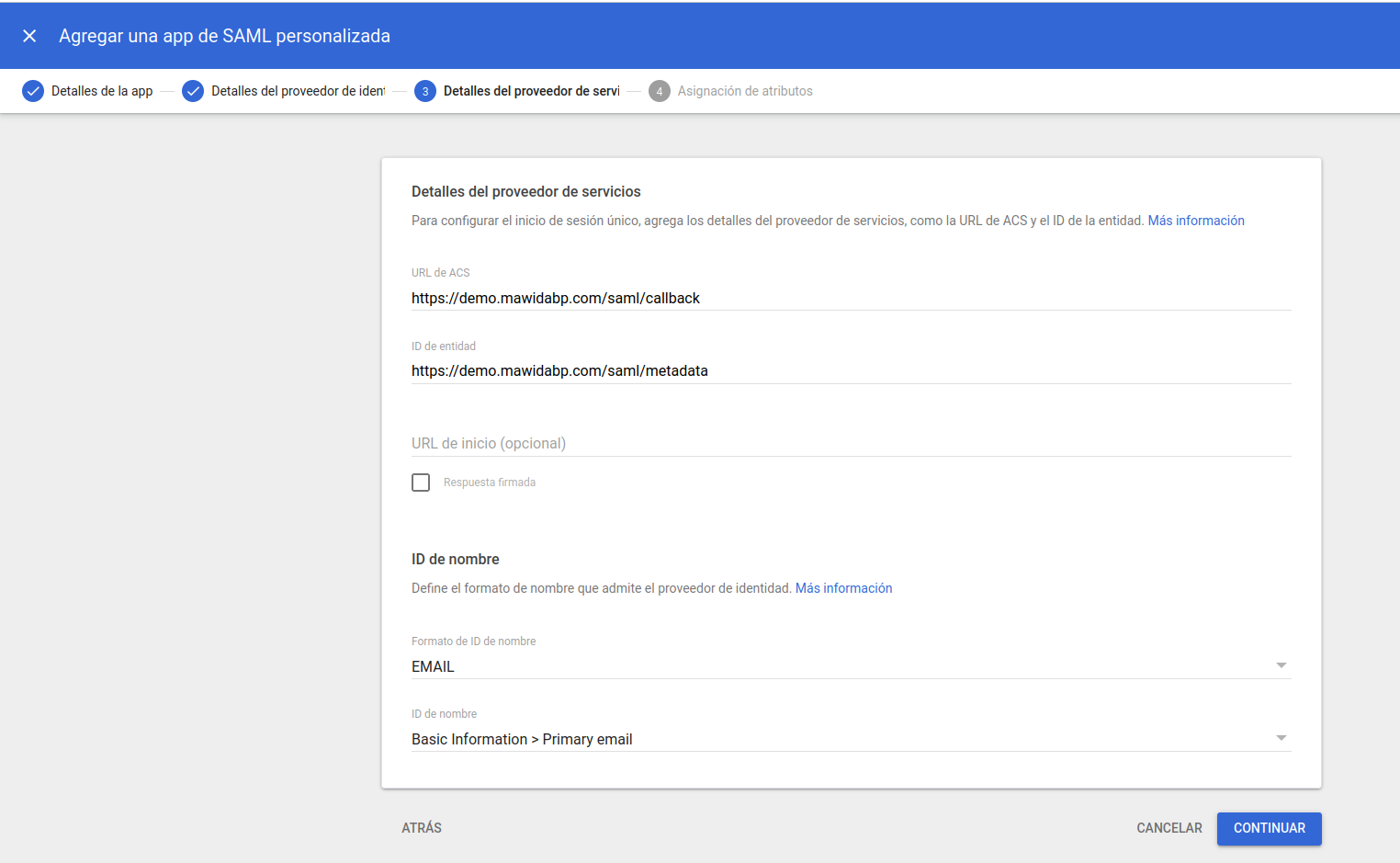
Enter the values Mawidabp provides:
- ACS URL (Assertion Consumer Service URL).
- Entity ID.
- Name ID method: Primary email (recommended).
Continue.
5. Attribute mapping
Map the attributes Mawidabp will use to identify the user:
| App attribute (Mawidabp) | User value (Google) |
|---|---|
| Primary email | |
| First Name | firstname |
| Last Name | lastname |
| Primary email | Username |
Save and continue.
6. Review and finish
Review that everything is correct and click Finish.
7. Assign users
- From the apps list, select Mawida BP.
- Assign users or organizations.
- Pick the organizational units or users that will have access.
- Activate access.
Part 2 — Configuration in Mawidabp
1. Create profiles
- Administration → Security → Profiles and privileges → New (or edit an existing one).
- Fill in:
- Profile: descriptive name.
- Profile type: auditor, supervisor, manager, etc.
- Identifier: the group name assigned in Google Workspace.
- Tick the privileges per module.
2. Edit the organization
- Administration → Management → choose the organization.
- In the SAML section, fill in the IdP fields (SSO URL, Entity ID, certificate).
- Update organization.
Test sign-in
- Sign out of Mawidabp.
- Sign in with the assigned Google account.
- The sign-in flow redirects to Google, validates, and returns to Mawidabp with the user signed in.
Common problems
"User not found" after Google sign-in: verify the attribute mapping has Primary email both in Primary email and Username.
The certificate does not work: re-copy the certificate from Google and paste it whole; it usually breaks when a line is dropped during copy.
The Google group does not match the Mawidabp profile: confirm that the Identifier of the Mawidabp profile is exactly the group name in Google (case-sensitive).
Support
For any questions during configuration, write to soporte@mawidabp.com.