Microsoft Entra ID
This guide configures single sign-on (SSO) between Microsoft Entra ID and Mawidabp using SAML 2.0. Once it's running, users authenticate with their Microsoft corporate credentials and their Mawidabp profiles are derived from the groups assigned in Entra ID.
Microsoft renamed Azure AD to Microsoft Entra ID in 2023. Old Azure AD instructions still work, but this page describes the current configuration with the Entra ID UI.
Prerequisites
- Administrator account in the Microsoft Entra ID tenant.
- Administrator account in Mawidabp with permission to edit organizations, profiles, and users.
- Your organization's domain in Mawidabp of the form
<organization>.mawidabp.com(for example,demo.mawidabp.com).
Part 1 — Configuration in Microsoft Entra ID
1. Create the enterprise application
-
Sign in to the Entra ID portal.
-
Open the services menu and choose Microsoft Entra.
-
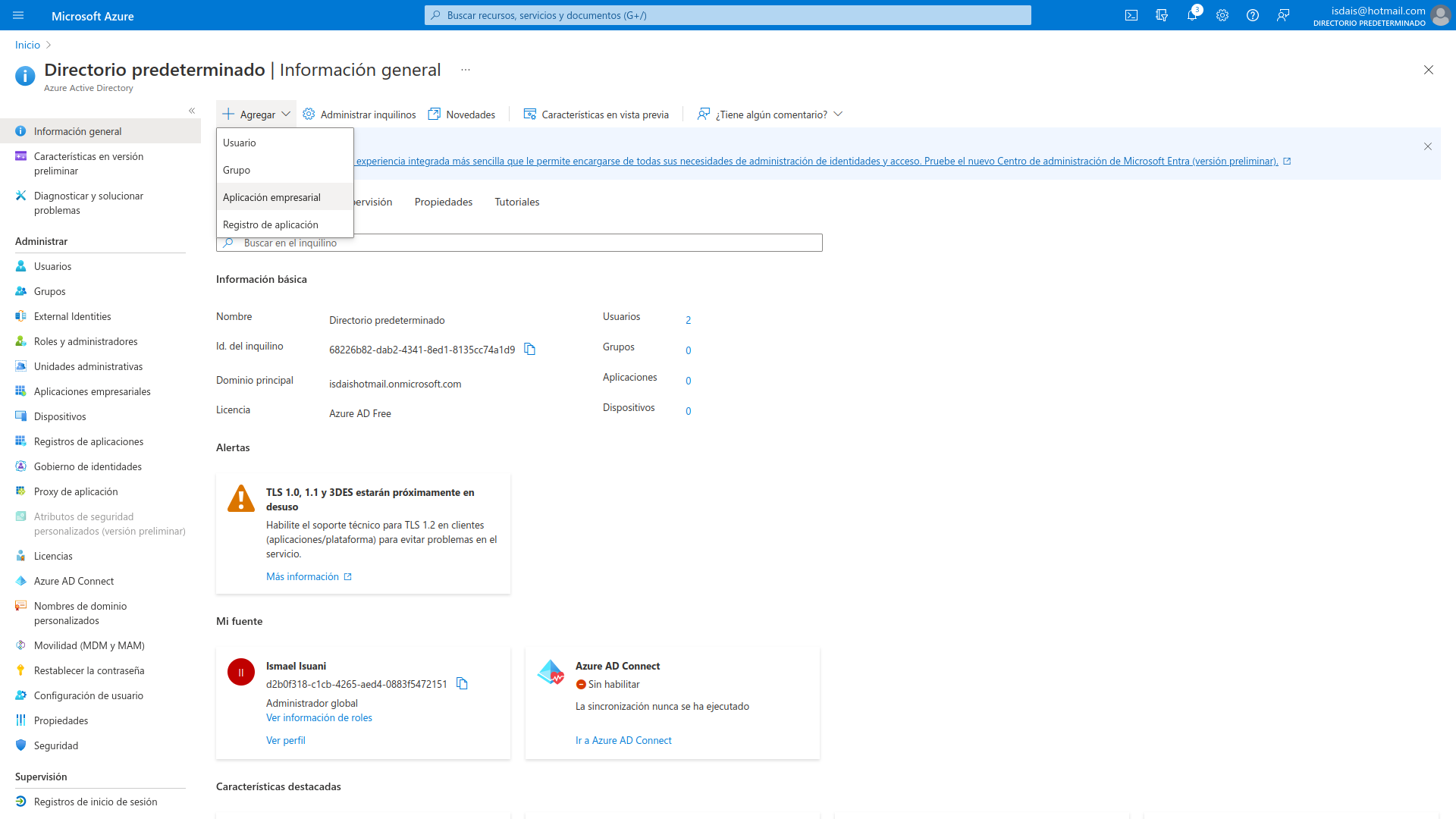
From the directory, select Add → Enterprise application.
-
Create your own application, fill in the name (for example
MawidaBP), and choose Integrate any other application you don't find in the gallery.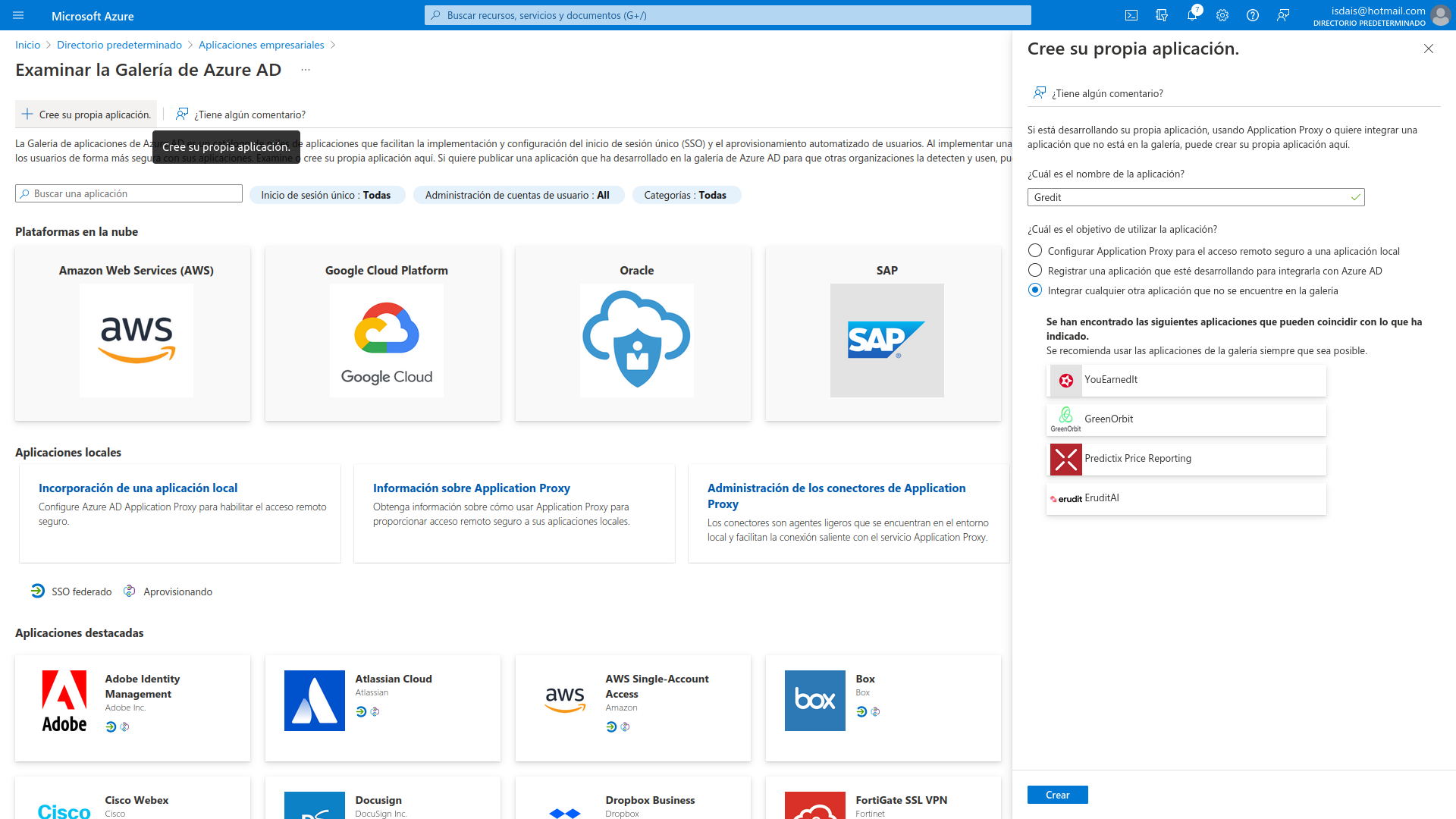
-
Create.
2. Configure SAML
-
Inside the application, go to Set up single sign on.
-
Select SAML.
-
In box 1 (Basic SAML Configuration), click Edit and fill in (replacing
<organization>with your subdomain):- Identifier (Entity ID):
https://<organization>.mawidabp.com/saml/metadata - Reply URL:
https://<organization>.mawidabp.com/saml/callback
For example, for an organization named
demo:- Identifier:
https://demo.mawidabp.com/saml/metadata - Reply URL:
https://demo.mawidabp.com/saml/callback
- Identifier (Entity ID):
-
Save.
3. Configure attributes and claims
- In box 2 (Attributes & Claims), Edit.
- Under Additional claims, add:
http://schemas.microsoft.com/ws/2008/06/identity/claims/groups
- In the Group Claims panel that pops up, choose Groups assigned to the application and Save.
4. Download data for Mawidabp
From the same SAML configuration screen, get:
- Certificate (Base64).
- Login URL.
- App Federation Metadata URL.
- Reply URL (Assertion Consumer Service URL).
- Identifier (Entity ID).
- Azure AD Identifier (still called this).
- Logout URL.
- Exact attribute names: first name, last name, email, username, groups, manager, position.
5. Assign users and groups
-
In Users and groups, add the users that will be allowed to use Mawidabp.
-
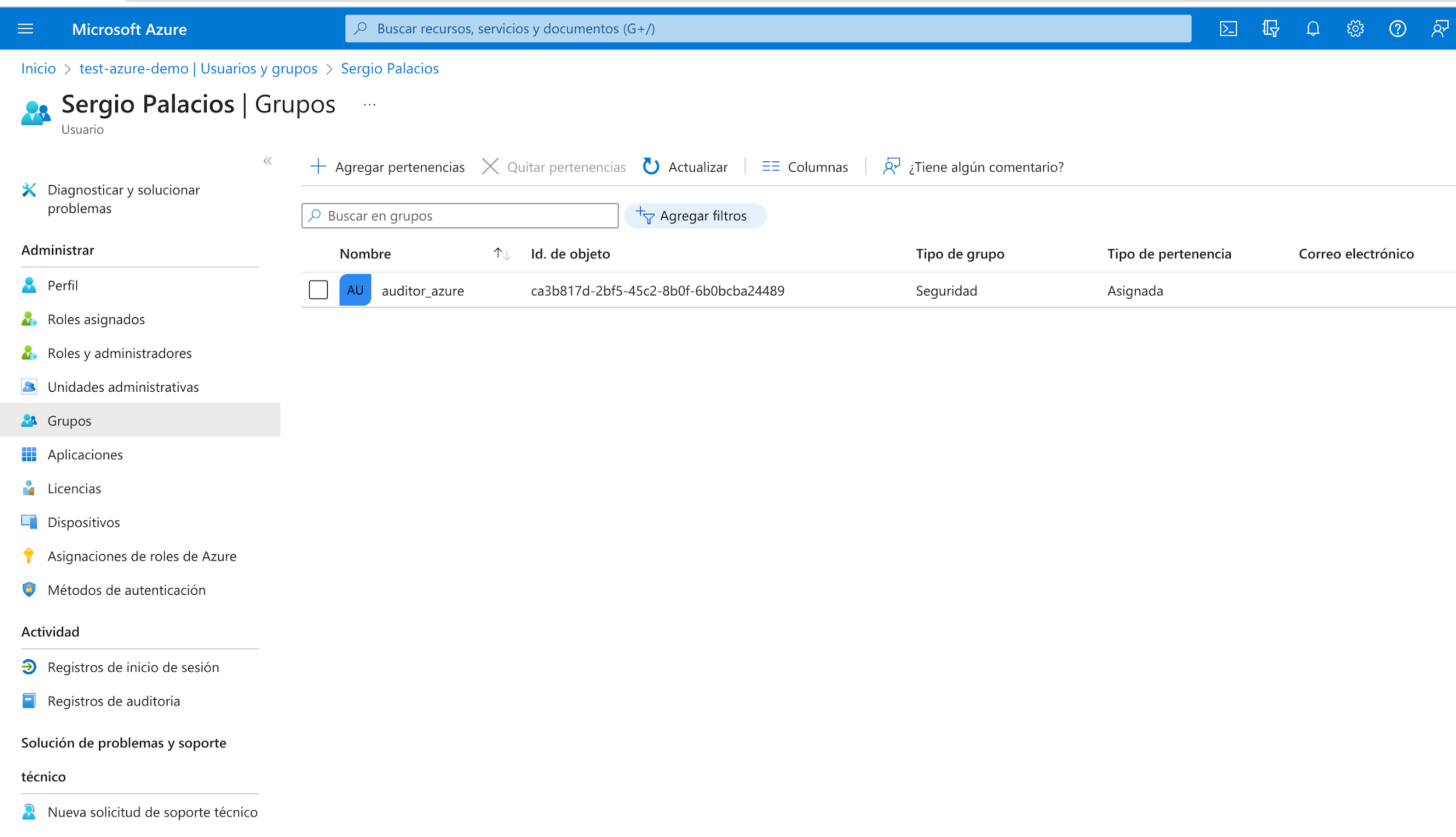
For each group, note the Object ID (you'll need it when configuring profiles in Mawidabp).
Part 2 — User import (optional)
For Mawidabp to sync users from Entra ID automatically, you also need an App registration:
1. Create the registration
- Microsoft Entra → App registrations → New registration.
- Fill in:
- Name: for example,
Mawidabp Sync. - Supported account types: Accounts in this organizational directory only (single tenant).
- Name: for example,
- Register.
2. Grant API permissions
- Inside the registration, go to API permissions → Add a permission.
- Microsoft Graph → Application permissions.
- Find and tick User.Read.All.
- Add permissions.
- Grant admin consent for the permission you just added.
3. Create the client secret
- Certificates & secrets → New client secret.
- Fill in Description and Expires.
- Add.
- Copy the secret value immediately. After leaving the screen, it cannot be displayed again.
Part 3 — Configuration in Mawidabp
1. Create profiles
- Administration → Security → Profiles and privileges → New (or edit an existing one).
- Fill in:
- Profile: descriptive name, for example
MawidabpAIAuditor. - Profile type: auditor, supervisor, manager, etc.
- Identifier: the Object ID of the Entra ID group you want to associate with this profile.
- Profile: descriptive name, for example
- Tick the privileges (read, modify, delete, approve) per module.
- Create profile.
Repeat for each Entra ID group that should map to a Mawidabp profile.
2. Edit the organization
- Administration → Organization → Management → Edit.
- In the SAML configuration section, fill in:
- Provider:
Azure - Certificate: paste the downloaded Base64 certificate.
- Login URL, App federation metadata URL, Reply URL, Identifier, Azure AD Identifier, Logout URL: the values from Part 1 step 4.
- Attributes: first name, last name, email, username, groups, manager, position, exactly as they appear in Entra ID.
- assertion consumer service binding:
urn:oasis:names:tc:SAML:2.0:bindings:HTTP-POST
- name identifier format:
urn:oasis:names:tc:SAML:1.1:nameid-format:emailAddress
- Provider:
- Update organization.
3. User import (optional)
If you completed Part 2:
- On the same organization screen, in User import, fill in:
- Client ID of the App registration.
- Client Secret (the value copied in Part 2 step 3).
- Tenant ID.
- Update organization.
- Administration → Security → Users → Import from SAML to trigger the sync.
Test sign-in
- Sign out of Mawidabp.
- Sign in with a user assigned to the corresponding Entra ID group.
- The sign-in should redirect to Microsoft, validate credentials, and come back to Mawidabp with the user signed in.
Common problems
Sign-in redirects but fails with "Unauthorized user": verify the user is assigned to a group in Entra ID and that the group has a corresponding profile in Mawidabp with the right Object ID.
The importer brings an empty list: check that User.Read.All has admin consent and that the client secret has not expired.
The certificate does not match: make sure you downloaded the Base64 version, not Binary.
Support
If something fails during configuration, write to soporte@mawidabp.com.