Adobe Sign signature
Adobe Sign lets you digitally sign final audit reports (and other documents) from Mawidabp without leaving the system. This guide covers app onboarding in Adobe Sign, OAuth configuration, and binding inside Mawidabp.
What gets signed
- Final audit reports: the signature is embedded into the PDF and the responsible parties assigned to the report complete it from Adobe Sign.
- Other documents the team decides to sign digitally (minutes, letters, memos).
Signers do not need their own Adobe Sign account; the flow reaches them via email from Adobe.
Prerequisites
- Active Adobe Sign account on a plan that supports API Applications.
- Administrator in Mawidabp.
- Redirect URI provided by Mawidabp — request it from soporte@mawidabp.com if you don't have it.
Part 1 — App onboarding in Adobe Sign
1. Create the application
-
Sign in to secure.echosign.com.
-
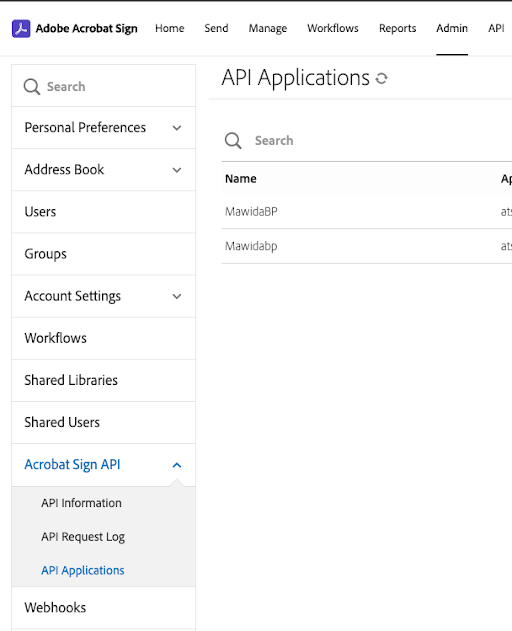
From the top menu, go to the API tab.
-
Side menu Acrobat Sign API → API Applications.
-
Create.
-
Fill in:
- Name / Display Name:
MawidaBP. - Domain: PARTNER (This application will have access to any authorized Acrobat Sign account).
- Name / Display Name:
-
Save.
2. Configure OAuth
-
Click on the name of the created application.
-
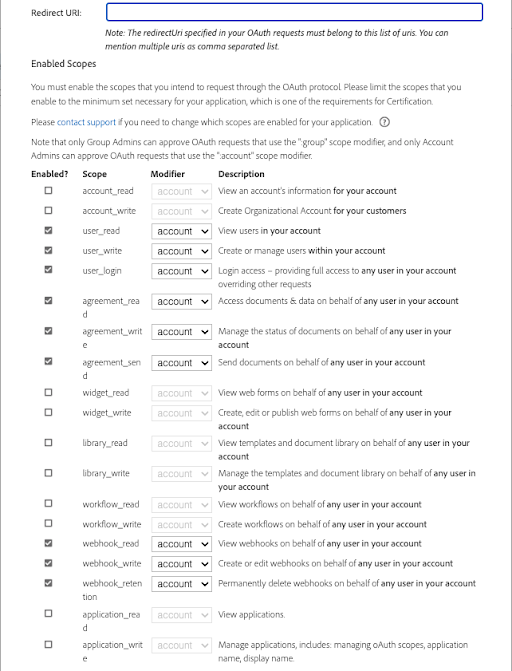
Select Configure OAuth for Application.
-
Redirect URI: paste the URL provided by the Mawidabp team.
-
Activate the scopes (OAuth permissions) exactly as shown in the screenshot you receive from support. Typically they include reading, writing, and sending agreements.
-
Save.
3. Get Client ID and Client Secret
Inside the configured application:
- Client ID: appears in the application's main view.
- Client Secret: generate it if it doesn't exist yet and copy it.
The Client Secret is sensitive. Store it in a password manager or vault. Do not share it through insecure channels.
Part 2 — Configuration in Mawidabp
1. Create the digital signature
- Sign in to Mawidabp with administrator profile.
- Administration → Organization → Digital signatures.
- If no signature is configured, New.
- Fill in:
- Provider:
Adobe Sign. - Name: descriptive name (for example,
Final audit reports signature). - Client ID: the one copied from Adobe Sign.
- Client Secret: the one generated in Adobe Sign.
- Provider:
- Save.
2. Associate the signature with users
In the configuration of each user that will sign, link the digital signature you just created. This way, when Include signature is ticked on a report, the user shows up as a signer.
Signing flow from a report
- When creating or editing a report, tick Include signature and select the signers from the configured users.
- When the final audit report is issued, Mawidabp generates the PDF and sends it to Adobe Sign.
- Adobe Sign sends each signer an email with the link to sign.
- As signers complete, the document's status in Mawidabp updates.
- Once everyone has signed, the signed PDF becomes available from the report.
Signature statuses
- Pending: the document was sent to Adobe Sign but is not yet signed.
- In signing: at least one signer signed but the rest are pending.
- Signed: all signers completed the signature.
- Cancelled: the document was cancelled in Adobe Sign.
- Error: communication failure with Adobe; check logs.
Common problems
The flow does not reach the signer: verify the signer's email is correctly loaded in Mawidabp and there are no anti-spam filters blocking Adobe Sign emails.
"Invalid client credentials": Client ID or Client Secret are wrong. Regenerate them in Adobe Sign and update them in Mawidabp.
"Scope insufficient": an OAuth scope is missing in Adobe Sign. Compare against the reference screenshot.
Support
For any questions, write to soporte@mawidabp.com.